PRACTICE · UI REPLICA & UX EXPLORATION
iOS Clock: Design replica & UX exploration
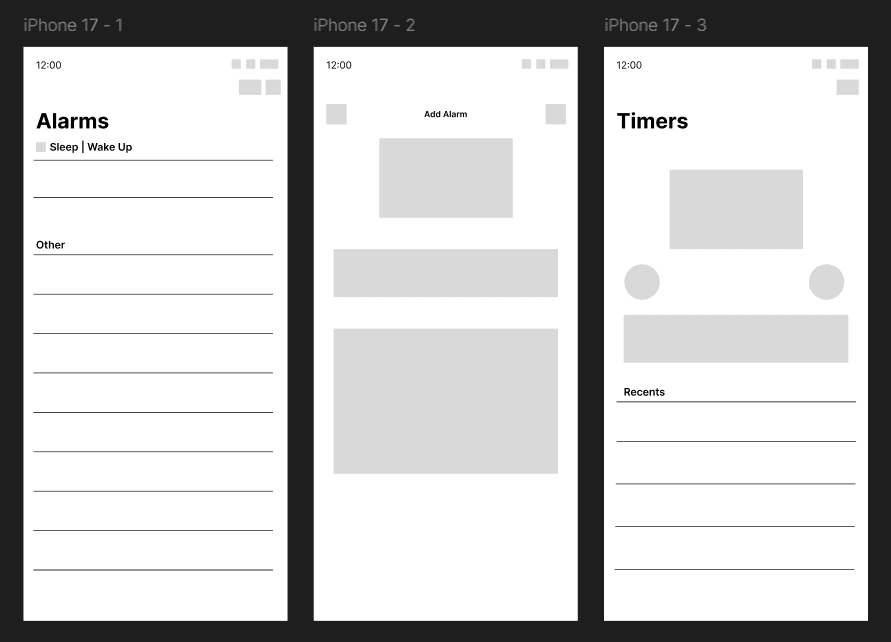
I recreated the iOS Clock app’s Alarms, Add Alarm, and Timers screens as a UI practice project. Using Clock every day for morning alarms, reminders, and cooking timers inspired me to explore clearer organization and faster time entry. With many preset alarms, finding the right one can mean a lot of scrolling, and I’ve sometimes selected PM when I meant AM. I proposed folders or tabs for groups such as Work, with one switch to toggle a whole group, plus timer categories such as Cooking and Workouts. I also explored numeric keypad entry as an alternative to scrolling through the time-selection wheel. These ideas reflect my own experience and would need usability testing.
I recreated the Alarms, Add Alarm, and Timers screens of the iOS Clock app as a UI practice project. I use Clock every day, from morning alarms and important reminders to cooking timers. That familiarity led me to explore two opportunities: clearer organization and a faster way to enter a time.
Organizing alarms and timers
In the version I studied, alarms were split between Sleep/Wake Up and Other. With many preset alarms, finding the right one meant a lot of scrolling. I had also accidentally chosen PM when I meant AM. I explored grouping alarms into folders or tabs, such as Work, with the option to switch an entire group on or off together. Timers could use similar categories, such as Cooking or Workouts, to make relevant presets easier to find.
Exploring direct time entry
I sometimes find the time-selection wheel slow and easy to overshoot. As an alternative, I proposed direct entry through a numeric keypad, allowing users to type the time they want rather than scroll to it. These ideas came from my own experience and are opportunities to explore and test, rather than validated usability improvements.